Linux for Windows Brains
I learned computers through Windows. Drive letters, executable extensions, Task Manager, Windows Services, installers, and the registry formed my first model of an operating system. Linux has equivalents for most of those ideas, but matching them one for one creates confusion. The useful shift is to understand where the models differ.
This is the translation I wanted when I started spending more time in Linux terminals. It is not a command catalog. It follows a file from disk, through permissions and a shell, into a running process, then applies the same model to remote machines and containers.
One filesystem tree, with other filesystems attached
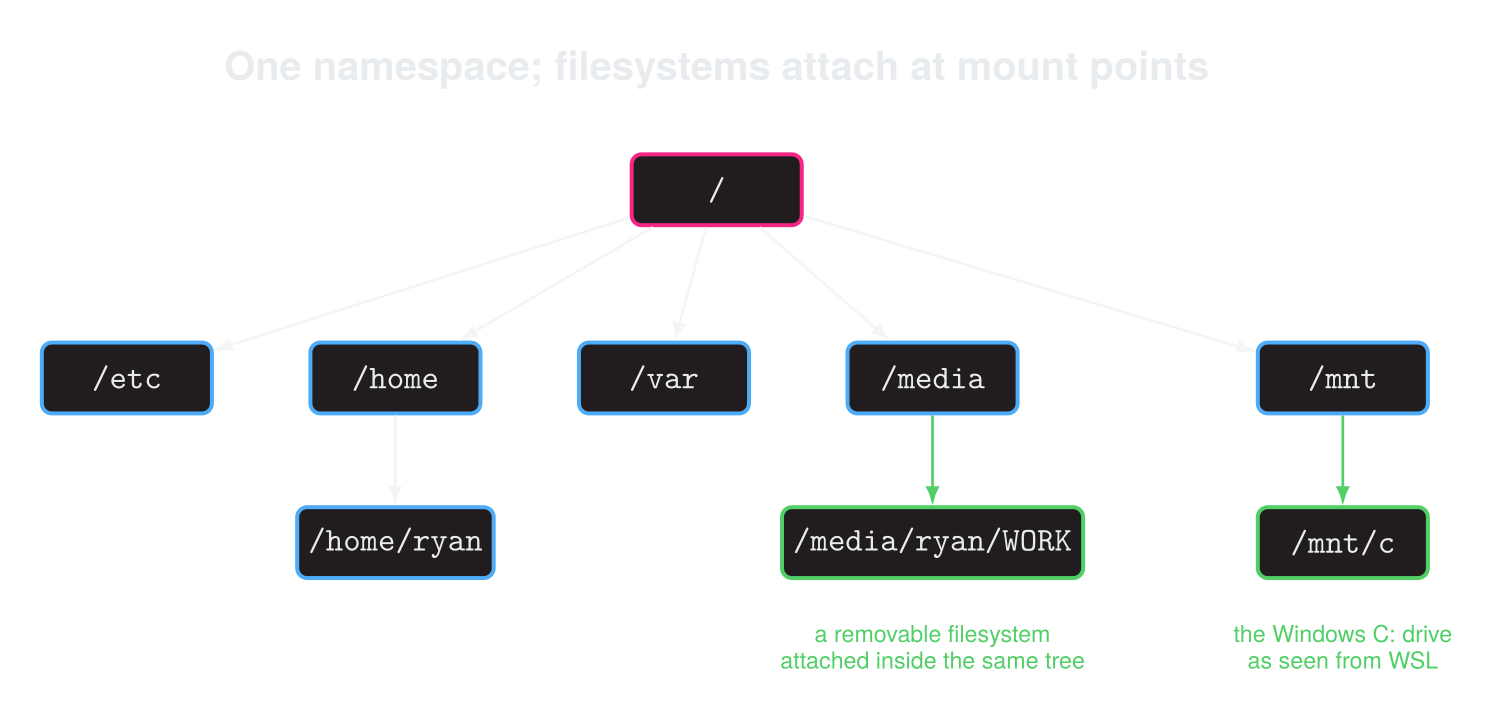
Windows presents storage as several roots such as C:\ and D:\. Linux presents one tree rooted at /. A disk, USB device, or network share becomes accessible when a filesystem is mounted at some directory in that tree.
If a USB filesystem is mounted at /media/ryan/WORK, then writing /media/ryan/WORK/report.txt writes to that device. The mount point is an ordinary directory, but while the filesystem is mounted, its root covers whatever the directory previously contained. Unmounting it reveals the original directory again.
That same mechanism appears everywhere. A few locations provide the basic map:
| Path | Role | Windows connection |
|---|---|---|
/ |
Root of the complete tree | A root such as C:\, except other filesystems attach below it |
/home/ryan or ~ |
My home directory | C:\Users\Ryan |
/etc |
System-wide configuration | Parts of the registry and ProgramData |
/var |
Data that changes while the system runs | ProgramData, caches, spools, and logs |
/tmp |
Temporary files, cleaned according to system policy | %TEMP% |
/usr/bin |
Most commands installed by the operating system | Executables under Program Files and system directories |
/usr/local |
Software installed locally outside the distribution | Locally managed Program Files |
/dev |
Device interfaces represented as special files | Pieces of Device Manager exposed through paths |
/proc and /sys |
Kernel views of processes, devices, and settings | Some Task Manager and Device Manager information exposed as trees |
These are conventions, not a promise that every application stores everything in one prescribed place. System configuration is often plain text under /etc, while per-user configuration commonly lives in hidden files or directories under ~, such as ~/.ssh. Logs may be files under /var/log, entries in the system journal, or output collected directly by a container platform.
WSL preserves the same Linux tree. Windows drives are normally mounted below /mnt, so C:\Users\Ryan\source appears as /mnt/c/Users/Ryan/source. For Linux-heavy work, keeping repositories in the WSL filesystem under ~ generally gives better Linux filesystem behavior and performance than working through /mnt/c.
Paths carry identity
Linux paths use /, are normally case-sensitive, and have no required file extensions. Report.txt and report.txt can be separate files. A name beginning with . is hidden by convention, which is why ls omits .ssh and .config unless I ask for all entries with ls -a.
The shell gives a few path abbreviations that quickly become muscle memory:
pwd              # print the current directory
cd ~/source      # ~ expands to my home directory
cd ..            # move to the parent directory
cd -             # return to the previous directory
ls -la           # include hidden entries and show details
Spaces are legal in names, but the shell treats an unquoted space as an argument separator. cd "My Project" passes one path; cd My Project passes two arguments. Quoting is part of using the shell correctly, not a workaround for an unusual filename.
A symbolic link is a directory entry that contains another path. It resembles a Windows shortcut in purpose, but programs normally follow it as part of filesystem traversal rather than opening a separate shortcut file:
ln -s releases/2026-08 current
readlink current
readlink -f current
The stored target may be relative to the link’s directory or absolute from /. Moving a relative link can therefore change what it reaches, and deleting the target leaves a dangling link. readlink shows the stored target; readlink -f resolves the complete chain when every component exists. A hard link is different: it gives the same underlying file another name, with no distinguished original path. Symbolic links are the form I encounter most often in deployment layouts, tool installations, and configuration.
Deletion is another important difference in practice. rm does not move a file to a desktop recycle bin. Recursive deletion, wildcards, and elevated privileges make a particularly sharp combination, so I inspect the resolved directory and file list before applying a broad removal command.
Executability is permission, not punctuation
Windows commonly identifies an executable by an extension such as .exe, then uses file associations for scripts and documents. Linux records whether a file may be executed in its permission bits. The extension can help a human, but the kernel does not need it.
ls -l deploy
chmod +x deploy
./deploy
An entry such as -rwxr-x--- describes permissions for the owning user, owning group, and everyone else. Each set uses r for read, w for write, and x for execute. Directories use the same letters with different consequences: read permits listing names, write permits adding or removing entries, and execute permits traversing the directory and accessing entries by name. A directory can therefore be searchable without being listable.
Ownership matters alongside the mode:
ls -l deploy
id
chown app:app deploy       # normally requires root
chmod u=rwx,g=rx,o= deploy
This explains many failures that initially look like application bugs. A service may read a configuration file in my terminal but fail under its own user. A bind-mounted container directory may be writable by a host user ID but not by the user ID inside the container. The path exists in both cases; the process identity and permissions decide whether it is usable.
New files receive their initial mode from the creating program, reduced by the process’s umask. A common umask of 022 removes group and other write permission, so a file requested as 0666 begins as 0644, while a directory requested as 0777 begins as 0755. The mask does not add permissions, and it does not explain every final mode because programs can request stricter modes or change them later. umask is still the first thing I inspect when newly created files are consistently too open or too restrictive.
A script also needs an interpreter. Its first line, the shebang, tells the kernel which program should read it:
#!/usr/bin/env bash
./deploy asks the kernel to execute the file in the current directory. The explicit ./ is required because the current directory is normally absent from PATH. When I type git, the shell searches the directories in PATH in order. command -v git shows which command will run, including shell functions and aliases that a simpler executable-only lookup can miss.
Windows-authored scripts can carry CRLF line endings. When a shebang ends in CRLF, Linux can interpret the carriage return as part of the interpreter path and report a confusing “not found” error. Repository attributes or editor settings are a better long-term fix than repeatedly converting files after checkout.
Install software at the right layer
On Windows I grew accustomed to finding an installer on a vendor site. A Linux distribution instead assembles a tested set of packages and exposes it through a package manager. Ubuntu and Debian use apt, Fedora uses dnf, Arch uses pacman, and Alpine uses apk.
For Ubuntu, the ordinary system workflow is:
sudo apt update
sudo apt install ripgrep
sudo apt upgrade
sudo apt remove ripgrep
apt update refreshes package metadata; it does not upgrade installed packages. The repository version may trail the vendor’s newest release because the distribution is maintaining a coherent system, not tracking every upstream release immediately.
Other installation methods solve different ownership problems:
- The distribution package manager owns system software and security updates.
- A project dependency manager, such as Go modules, NuGet, npm, or Python virtual environments, owns dependencies reproducibly within one project.
- A user-level tool installer or version manager owns developer tools without changing the operating system installation.
- A standalone vendor binary can live under a user directory such as
~/.local/bin, or under/usr/local/binwhen it is managed for the whole machine. - A container packages an application with its user space, but still shares the host kernel and needs an explicit data and security model.
The important question is not merely how to get a binary onto the machine. It is who will update it, who can modify it, and which projects or users should see it. Installing a Python library globally with elevated privileges, for example, mixes the operating system’s package ownership with a language ecosystem’s ownership. A virtual environment keeps that boundary clear.
sudo runs a command with another user’s privileges, usually root. Root resembles Administrator in authority, but sudo is deliberately scoped to one command and recorded by the system. I use it when changing system-owned state, not as a generic response to a permissions error. If a build only works with sudo, the first question is usually why my build is writing to a system-owned location.
The shell connects small programs
A terminal displays text and carries keyboard input. A shell, such as Bash or Zsh, reads commands, expands variables and wildcards, starts programs, and connects their streams. Keeping those roles distinct helps when a command behaves differently in a script, an interactive terminal, or an SSH session.
Linux command-line programs commonly expose three streams: standard input, standard output, and standard error. Pipes and redirection connect them:
ps aux | rg postgres
journalctl -u nginx | rg "timed out"
some-command >result.txt 2>errors.txt
some-command >>result.txt
The first pipeline does not ask ps to understand a search expression or rg to understand processes. It connects one program that enumerates processes to another that filters text. That compositional model is the reason a handful of small commands can answer specific questions.
Exit status composes control flow in the same way. Zero means success; a nonzero value describes some form of failure. build && test runs the tests only after a successful build. probe || diagnose runs the diagnosis only when the probe fails. This is more reliable than deciding success from whether a command printed alarming text.
Environment variables belong to a process and are inherited by children. export API_URL=... makes a variable available to commands started from that shell, but it does not create a machine-wide setting. Shell startup files such as ~/.bashrc and ~/.zshrc can configure interactive sessions, although login shells, non-interactive scripts, services, and containers may read different files or none of them. I prefer putting required configuration in the mechanism that starts the process instead of assuming every process reads my interactive shell setup.
Processes are the running unit
An installed program is a file. A process is a running instance with an ID, user, environment, open files, and parent process. The basic investigation loop is small:
ps aux
pgrep -a nginx
top
kill 1234
kill sends a signal. With no explicit signal it sends SIGTERM, a request that gives the process a chance to shut down. SIGKILL, often written as kill -9, cannot be handled and should be the last step after graceful termination fails. It can leave surrounding state unfinished even though the kernel reclaims the process itself.
Long-running system processes are often managed as services. On distributions using systemd, the common interface is:
systemctl status nginx
sudo systemctl restart nginx
sudo systemctl enable nginx
journalctl -u nginx -f
start affects the current boot; enable configures startup for future boots. They are separate operations. journalctl reads the system journal and can filter logs for a service. Linux itself does not require systemd, so Alpine containers, WSL configurations, embedded systems, and other distributions may use another service manager or no service manager at all.
SSH starts a process on another machine
SSH is easiest to understand as a secure way to connect to an SSH server and start a remote session or command. The familiar interactive form is only one use:
ssh user@example.com
ssh user@example.com 'uname -a'
scp report.txt user@example.com:/srv/reports/
rsync -av source/ user@example.com:/srv/source/
Public-key authentication uses a key pair. The private key stays with me; the public key is authorized on the server. I protect the private key with a passphrase and let an SSH agent hold the unlocked key for a session.
ssh-keygen -t ed25519
ssh-copy-id user@example.com
The first connection also asks me to verify the server’s host key. This is not noise to dismiss. User keys let the server authenticate me; host keys let me authenticate the server. A changed host key can be legitimate after a rebuild, but I verify that through a trusted channel before replacing the saved entry.
~/.ssh/config turns connection details into a named host shared by ssh, scp, and rsync:
Host reports
    HostName reports.example.com
    User ryan
    IdentityFile ~/.ssh/reports_ed25519
After that, ssh reports uses the complete configuration. Local port forwarding extends the connection:
ssh -L 15432:database.internal:5432 reports
Connections to local port 15432 travel through the SSH server named reports, which then connects to database.internal:5432. localhost in the destination would mean the SSH server’s own network namespace, not my workstation.
Names, addresses, and ports are separate layers
A hostname is a name that must resolve to an address. DNS is the usual source, but local configuration such as /etc/hosts can participate too. getent hosts example.com asks the system resolver what applications normally see; it can therefore give a more relevant answer than querying a DNS server directly. If a browser reaches a service by address but not by name, I investigate resolution before changing the service.
Reaching the address is still not enough. A process listens on a particular address and port. A server bound to 127.0.0.1:8080 accepts connections only through that machine’s loopback interface; one bound to 0.0.0.0:8080 accepts IPv4 connections through all of its interfaces, subject to firewall and routing rules. ss -lntp shows listening TCP sockets and, when permissions allow, their owning processes.
This gives me a useful order for diagnosing a connection: resolve the name, identify the resulting address, confirm that the process is listening on the expected address and port, then inspect the route, firewall, proxy, or tunnel between the client and server. curl -v is useful because it exposes several of those stages for HTTP without hiding the connection details behind an application UI.
Containers reuse the same filesystem and process model
A container is not a tiny virtual machine. It is one or more processes isolated with Linux kernel features and given a filesystem assembled from image layers plus a writable container layer. Stopping a container leaves that writable layer in place. Removing the container removes it, so durable or shared data needs separate storage.
A bind mount maps a host path to a container path:
docker run --mount \
  type=bind,src="$PWD/config",dst=/app/config,readonly \
  example/app
A named volume asks Docker to manage the storage:
docker run --mount \
  type=volume,src=app-data,dst=/var/lib/example \
  example/app
Both are ordinary mounts from the container’s point of view. The distinction is ownership. I choose a bind mount when the host should manage and inspect the files, such as source or configuration. I choose a named volume when the container runtime should manage application data independently of a particular container.
Mounting storage at a container path covers the image content already at that path. Permissions still apply, and numeric user and group IDs matter across the mount boundary. On Docker Desktop, Linux containers run inside a Linux virtual machine, so bind mounts also cross the macOS or Windows boundary and can differ in performance and filesystem behavior from native Linux.
The networking model has a similar boundary. localhost inside a container refers to that container’s network namespace. Publishing -p 8080:80 makes host port 8080 forward to container port 80; it does not merge the host and container networks.
A small practice path
I would build Linux intuition through one disposable exercise rather than memorize a page of commands:
- Create a directory under
~, add a shell script with a shebang, inspect its permissions, make it executable, and run it with./. - Change the script to read standard input, filter it with
rg, and write normal output and errors to separate files. Check each exit status withecho $?. - Use
psto find the running script, send itSIGTERM, and observe how it exits. - Connect to a disposable Linux machine over SSH, give it a host alias, and run the same script remotely.
- Put the script in a container image, then run it once with a bind mount and once with a named volume. Remove and recreate the containers, and observe which data survives.
That path crosses the important boundaries: filesystem, permission, shell, process, remote host, and container. Once those boundaries are visible, Linux stops feeling like a collection of terse commands. It becomes a consistent model in which paths locate resources, identities and modes grant access, processes inherit an environment, and mounts decide which storage a path reaches.